
Installing Playback Pilot on Windows
The installer works like any other Windows app, but since it isn't code-signed yet, Windows will show a couple of warnings. Here's what to expect.
Step 1: Download
Download the installer from the link provided, or from playbackpilot.com/download-windows. You'll get a single PlaybackPilot-windows.exe file in your Downloads folder. No zip, no extraction needed.
Step 2: Run the installer
Double-click the .exe to start setup. Windows shows a couple of warnings because the installer isn't code-signed yet. Both are safe to bypass.
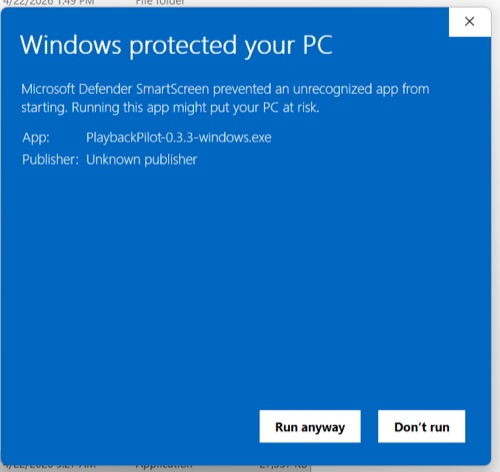
SmartScreen warning
Windows may show a blue "Windows protected your PC" screen.
→ Click "More info" (small text link below the warning)
→ Click "Run anyway"
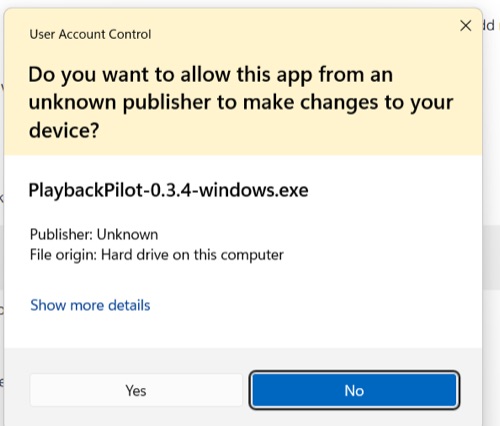
Admin permission
Windows will ask "Do you want to allow this app to make changes to your device?" This is normal: the installer needs permission to create the app folder.
→ Click "Yes"
Setup wizard
The Inno Setup wizard walks you through the install. The defaults work fine. It creates a Start Menu shortcut and optionally a Desktop shortcut.
Step 3: Launch Playback Pilot
Open Playback Pilot from the Start Menu or the Desktop shortcut. First launch may take a few seconds. That's one-time setup. Then select a folder with your music projects to get started.
Uninstalling
Control Panel → Programs → Playback Pilot → Uninstall. Or right-click Playback Pilot in the Start Menu → Uninstall.
Why the warning?
Windows SmartScreen warns about any app that hasn't been code-signed with a Microsoft-verified certificate. Code signing is planned for a future release. The app is safe: it only reads your local music project files and doesn't transmit them anywhere.
Questions or issues? Email hello@playbackpilot.com
Download for Windows